HomeHow to Set Up Kemo IPTV on Fire Stick (Step-by-Step)
How to Set Up Kemo IPTV on Fire Stick (Step-by-Step)
How to Set Up Kemo IPTV on Fire Stick (Step-by-Step)
A beginner-friendly Fire Stick walkthrough for Kemo IPTV—from credentials and app login to channel testing and troubleshooting.
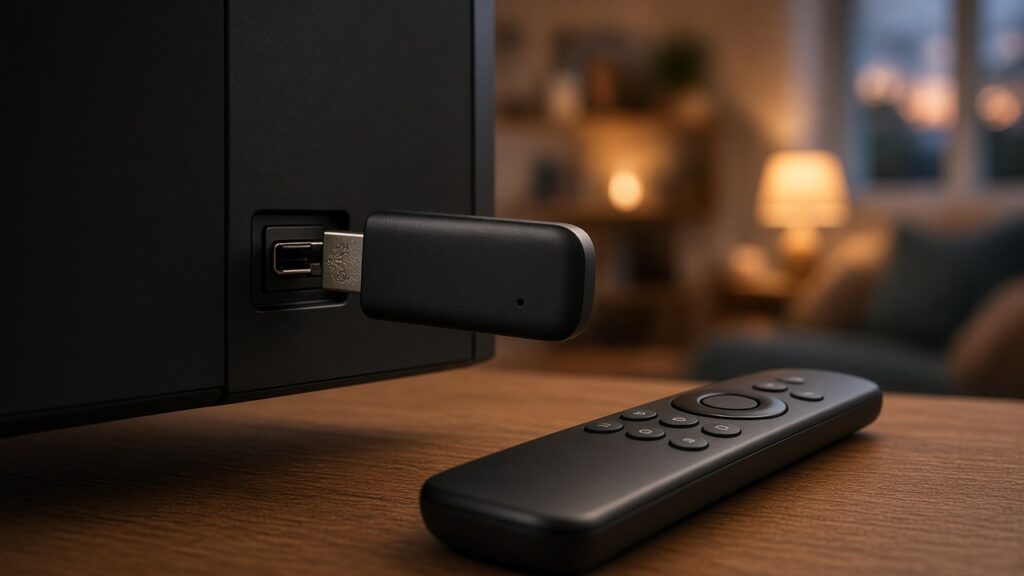
Amazon Fire Stick is one of the most common ways people watch IPTV in the living room. It is affordable, easy to move between TVs, and works well when your Wi-Fi is solid.
This step-by-step guide explains how to set up Kemo IPTV on Fire Stick / Fire TV using the general process described in Kemo IPTV’s public setup materials.
What you need
- Fire Stick or Fire TV device
- Stable internet connection
- Active Kemo IPTV subscription credentials (or playlist details)
- A compatible IPTV player app
According to Kemo IPTV’s setup guide, common player options include the Kemo IPTV app (where offered), IPTV Smarters Pro, TiviMate, Perfect Player, and similar apps. Use legitimate app sources and follow Amazon’s device policies.
Step 1: Prepare your Fire Stick
- Connect the Fire Stick to HDMI and power.
- Complete basic Amazon setup if it is new.
- Connect to Wi-Fi (or Ethernet adapter if you have one).
- Install pending system updates.
- Confirm the remote pairs correctly.
Step 2: Get your Kemo IPTV access details
After purchase, wait for activation details by email or member area. Kemo IPTV’s FAQ notes activation can take from about 30 minutes up to 12 hours after payment.
You will typically receive:
- Xtream Codes style host / username / password, or
- An M3U playlist URL
- EPG link in many cases
Keep those details private.
Step 3: Install a compatible IPTV app
On Fire Stick:
- Open the app store (or the distribution method supported for your chosen legitimate app).
- Install your selected IPTV player.
- Open the app once to grant required permissions.
- Return to the app home screen for login.
If an app is unavailable in your store region, choose another supported player rather than sideloading unknown APKs from random websites.
Step 4: Log in with your subscription
Xtream Codes style login
- Choose “Login with Xtream Codes API” (wording varies by app).
- Enter any required any-name field.
- Paste username and password.
- Enter the host/URL exactly as provided.
- Save and wait for the channel list to load.
M3U playlist login
- Choose M3U / playlist URL option.
- Paste the full playlist link.
- Add EPG URL if you received one.
- Load the playlist.
Step 5: Load EPG and organize channels
If EPG was included with your order, add it in the guide settings. Then:
Ready to try Kemo IPTV?
Choose a plan that fits your devices and connection needs.
- Favorite your most-used channels
- Check category groups
- Test both live TV and VOD sections if available
Step 6: Test performance the right way
Open:
- A news channel
- A sports or high-motion channel
- An international channel you care about
If playback is smooth across those, your setup is in good shape.
Fire Stick troubleshooting checklist
- Restart Fire Stick and router
- Move closer to Wi-Fi or use Ethernet
- Pause other downloads on the network
- Update the IPTV app
- Recheck username/host spelling
- Confirm whether one channel fails or all channels fail
- Test another network temporarily (mobile hotspot) to isolate ISP issues
Kemo IPTV’s FAQ also suggests testing roughly 20 Mbps+ from the streaming device when freezes continue.
Extra tips for a better Fire Stick experience
- Disable unused background apps
- Avoid overheating by giving the stick ventilation
- Keep the stick firmware updated
- Start with HD before forcing higher resolutions
Final notes
Setting up Kemo IPTV on Fire Stick is mostly about three things: valid credentials, a compatible player, and a stable network. Follow the official details from your order, stick to legitimate apps, and test a few channel types before buying a longer plan upgrade.
Should you use a VPN on Fire Stick?
Kemo IPTV’s FAQ says a VPN is mainly useful if your ISP blocks or throttles traffic. It is not automatically required for everyone. If evenings are fine without issues, you may not need one. If freezes appear mainly during live matches and your speed test looks fine, ISP interference becomes a more likely suspect.
Fire Stick model notes
Newer sticks generally handle HD more comfortably. Older sticks can still work well for many channels, but they may struggle more with demanding streams or heavier apps. Keep the stick cool and updated.
After setup checklist
- Favorites saved
- EPG loading
- At least one VOD title tested if included
- Second device tested only if your connection count allows it