HomeBest IPTV Apps for Fire Stick, Smart TV & Android
Best IPTV Apps for Fire Stick, Smart TV & Android
Best IPTV Apps for Fire Stick, Smart TV & Android
A practical guide to the best IPTV apps for Fire Stick, Smart TV, and Android—plus which players Kemo IPTV setup docs recommend.
The subscription gets you access. The app is what you actually tap every night.
If you have looked up the best IPTV apps for Fire Stick, Smart TV, or Android, you already know the problem: there is no single player that wins on every device store, every region, and every TV brand. What matters is matching a reliable player to the screen you use most, then loading your Kemo IPTV credentials the cleanest way your device allows.
This guide sticks to apps and setup paths referenced on Kemo IPTV’s own public setup and FAQ pages, plus practical notes for each platform. It is not a claim that one app is perfect for every household.
What makes an IPTV app “best” in practice
A good IPTV player usually does five things well:
- Accepts the login or playlist method your provider gives you
- Loads an EPG (program guide) without constant crashes
- Lets you browse live categories and favorites quickly
- Handles HD streams without freezing on a normal home connection
- Fits the remote and interface of your device
Pretty screenshots matter less than stable playback during a live match.
Quick picks by device
| Device | Apps commonly referenced for Kemo IPTV setup |
|---|---|
| Fire Stick / Fire TV | Kemo IPTV App, IPTV Smarters Pro, TiviMate, Perfect Player |
| Android phones / Android TV | Kemo IPTV App, IPTV Smarters Pro, TiviMate, GSE Smart IPTV |
| Samsung / LG Smart TV | Smart IPTV (SIPTV), or an HDMI stick if the TV store is limited |
| iPhone / iPad / Apple TV | Snappier IPTV, IPTV Smarters Pro, GSE Smart IPTV |
Always install from a source your device trusts, and use the credentials or playlist details sent after purchase.
Kemo IPTV App
Kemo IPTV promotes its own player as a primary option for customers. The site’s app page points people to the official download path and describes it as the recommended player for the service.
If you want the least guesswork, start here:
- Open the Kemo IPTV App page
- Use the published download link for your device type
- Enter the login details from your order email
- Test a news channel, a sports channel, and one VOD title
When the official app installs cleanly on your device, it is usually the fastest path. If a store region blocks it or the TV OS is limited, use one of the alternative players below.
Ready to try Kemo IPTV?
Choose a plan that fits your devices and connection needs.
Best IPTV apps for Fire Stick
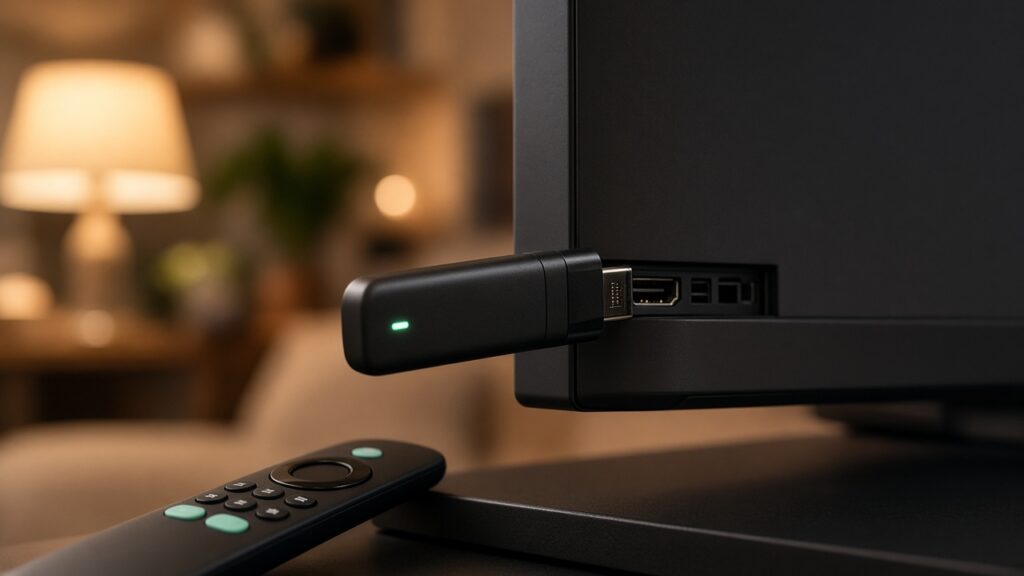
Amazon Fire Stick is still one of the easiest living-room routes for IPTV because you can sideload or install popular players more flexibly than on some locked Smart TV stores.
According to Kemo IPTV’s setup guide, common Firestick / Fire TV options include:
- Kemo IPTV App — recommended first path for the service
- IPTV Smarters Pro — widely used, EPG support, straightforward login flow
- TiviMate — strong Android-based player choice with a modern interface
- Perfect Player — another Fire TV–compatible option listed in setup material
Fire Stick setup pattern
- Connect the stick to HDMI and a stable Wi-Fi network
- Install your chosen player
- Sign in with the Xtream / panel credentials or playlist details from Kemo
- Wait for the channel list and EPG to load
- Create favorites for the channels you actually watch
If the stick feels slow, free storage space, restart the device, and prefer 5 GHz Wi-Fi when available. For a longer walkthrough, see the Fire Stick setup guide.
Best IPTV apps for Android
Android phones, tablets, and Android TV boxes are usually the most flexible group.
Kemo IPTV’s setup and FAQ pages point to:
- Kemo IPTV App
- IPTV Smarters Pro
- TiviMate
- GSE Smart IPTV
Android setup pattern
- Install the player from Play Store or the official Kemo download path
- Open the app and choose Xtream Codes / login or M3U / playlist mode as instructed in your email
- Enter host/URL, username, and password carefully—extra spaces break logins more often than people expect
- Load the playlist, then test live playback before organizing folders
On Android TV, a mouse or good remote makes favorites and EPG browsing much easier. If a phone works but the TV box buffers, compare Wi-Fi signal at the TV location before blaming the app.
Best IPTV apps for Smart TV (Samsung, LG, Android TV)
Smart TVs are convenient and also the most inconsistent platform.
From Kemo IPTV’s published guidance:
- Smart IPTV (SIPTV) is commonly referenced for Samsung, LG, and similar Smart TVs
- TiviMate and IPTV Smarters Pro are relevant when the TV is Android-based
- Some Smart TV stores limit third-party IPTV players by region or firmware
Smart TV reality check
If your Samsung or LG store does not offer a workable player, an HDMI stick (Fire Stick or Android TV stick) is often the cleaner solution. You keep the big screen and avoid fighting a locked TV OS. For step-by-step TV paths, use the Smart TV install guide.
iPhone, iPad, and Apple TV options
For Apple devices, Kemo IPTV’s setup guide references options such as:
- Snappier IPTV
- IPTV Smarters Pro
- GSE Smart IPTV
Apple platforms can be stricter about what appears in the App Store, so availability may vary by country. If a living-room Apple TV route feels limited, many households still use Fire Stick or Android TV on the main display and keep iOS for travel.
How to choose the right app for your home
Ask three questions:
- What is the main screen? Fire Stick and Android usually give more player choice than locked Smart TV stores.
- Who needs remote-friendly browsing? Living-room users often prefer players with clear categories and favorites.
- Do you need one app everywhere? Matching the same player family across phone and TV reduces learning friction, but it is not required.
A practical order for most Kemo IPTV buyers:
- Try the official Kemo IPTV App first
- Fall back to IPTV Smarters Pro or TiviMate on Android / Fire Stick
- Use SIPTV or an HDMI stick on Smart TVs with limited stores
Setup tips that prevent most first-day problems
- Copy credentials from email carefully; do not retype long passwords from memory
- Test internet speed on the streaming device, not only on your phone
- Start with HD channels before stressing 4K streams
- Restart the app and router once before assuming a bad subscription
- Keep one working player installed even if you experiment with a second
If a stream works in VLC on a PC but fails on the TV, the issue is often the TV app, network path, or device performance—not necessarily the account itself. Kemo’s FAQ also notes VLC as a useful PC-side check when a link seems broken on a TV.
Final take
The best IPTV app is the one that installs cleanly on your main device, accepts your Kemo login without drama, and stays stable during the shows you care about. For many customers, that starts with the Kemo IPTV App, then branches to IPTV Smarters Pro, TiviMate, GSE, or Smart IPTV depending on Fire Stick, Android, or Smart TV limits.
Ready to pick a plan and load a player? Check current subscription options, then follow the official setup guide for your device.