HomeHow to Set Up Kemo IPTV on iPhone, iPad, and Apple TV
How to Set Up Kemo IPTV on iPhone, iPad, and Apple TV
How to Set Up Kemo IPTV on iPhone, iPad, and Apple TV
A clear Apple setup for Kemo IPTV: which App Store players the setup guide lists, how to add your playlist, and how one connection behaves on iPhone and Apple TV.
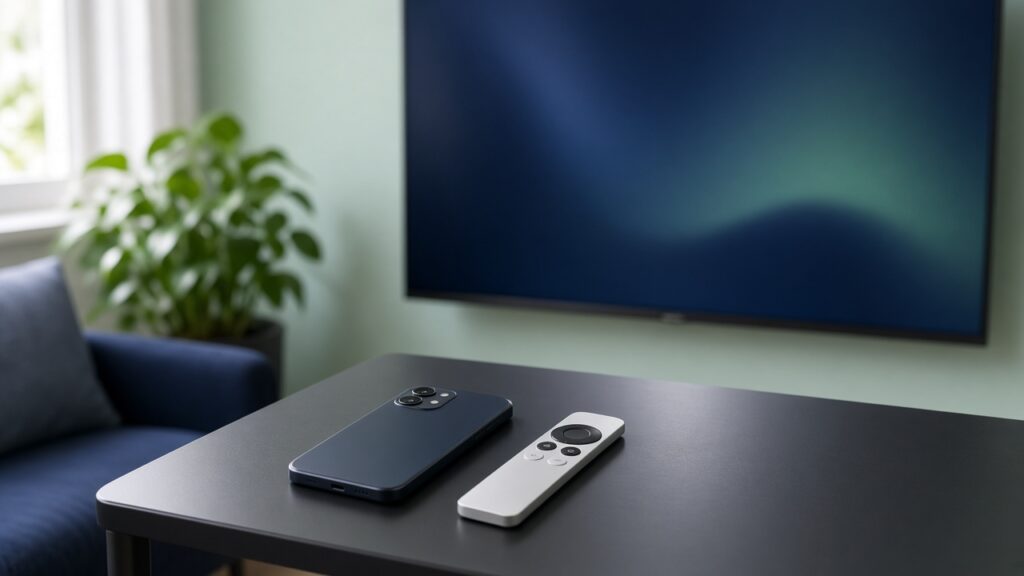
Apple devices are picky about which apps they allow, so the setup is different from a Fire Stick. You still need the same thing at the end: a player from the App Store, the playlist details from your Kemo order email, and a connection that can hold a live stream.
Kemo IPTV’s FAQ lists Apple TV and smartphones among the devices the service is meant to run on. The setup guide then names the players it suggests for iPhone, iPad, and Apple TV. This walkthrough follows those pages instead of inventing a private install method.
What you need before you open the App Store
Wait for the order email. Kemo’s FAQ says new accounts are activated between 30 minutes and 12 hours after the invoice is paid, and the subscription starts when the activation credentials arrive by email.
Have these ready:
- The iPhone, iPad, or Apple TV you will watch on
- The playlist or login details from that email
- The EPG link if it was included
The FAQ says Kemo usually sends EPG links with the order. If the guide data is missing, contact support and ask them to resend it. Do not guess a guide address.
A single-connection plan can be installed on more than one Apple device, but the FAQ is clear that you can watch on only one screen at a time. If the living-room Apple TV and a phone both try to play, the second one will fail even when the login is correct.
Apps the setup guide lists for Apple devices
Kemo’s setup guide points to three App Store options:
- Snappier IPTV for iPhone, iPad, and Apple TV. The guide says it supports M3U and JSON playlists, plus EPG and parental controls. The published App Store link is Snappier IPTV.
- IPTV Smarters Pro, described as available on iOS for iPhone and iPad, with playlist formats, EPG, and a built-in player.
- rIPTV, described as supporting EPG and M3U playlists on iOS.
App Store listings change by country. If one of these is missing in your region, use another app from that same list rather than a random download from the web.
Install and load the playlist
The setup guide’s Apple steps are short:
- Download the player from the App Store.
- Add the M3U or other playlist URL from your provider email.
- If an EPG link was included, add it in the app so the guide can fill in.
- Test a few channels before you spend time organizing favorites.
Type the playlist address carefully. A missing character is the usual reason a fresh account looks “dead” on the first try.
Ready to try Kemo IPTV?
Choose a plan that fits your devices and connection needs.
On Apple TV, use the same App Store account as the iPhone when you can, so the app you already tested on the phone is available on the television. Then repeat the playlist step on the TV. Saving it on the phone does not automatically copy it to Apple TV.
VPN and connection, according to Kemo’s own pages
The FAQ says you should use a VPN only if your internet provider is blocking or throttling the connection. If playback is already stable, a VPN is not part of the normal setup.
The setup guide adds a separate note for Apple devices: a VPN can help when a service is geo-restricted. Treat that as a fallback, not the first step. Turn it on only after a normal test fails, pick a nearby server, and test the same channel again. A far-away server can make a good line look like it is buffering.
For freezing in general, use the same order as the FAQ: restart the device and router, then run a speed test on that device. The FAQ points people to fast.com on the streaming device itself and says the result should be 20 Mbps or higher.
If the Apple TV feels limited
Some households get the phone working and then stall on Apple TV because the app they want is not in that country’s store. A Fire Stick or Android TV stick on the same HDMI port is a valid backup. Kemo’s setup guide already covers those devices separately, including the Fire Stick walkthrough.
Keep one working player. Switching apps every night makes it harder to tell a bad playlist from a bad install.
Bottom line
On iPhone, iPad, and Apple TV, start with an App Store player from Kemo’s setup guide—Snappier IPTV, IPTV Smarters Pro, or rIPTV—then add the playlist and EPG from the order email and test a few channels. One connection still means one screen at a time.
Plans are on the shop. The wider device notes are on the setup guide.