HomeFix IPTV Buffering: Causes and Quick Solutions
Fix IPTV Buffering: Causes and Quick Solutions
Fix IPTV Buffering: Causes and Quick Solutions
A practical guide to IPTV freezing: restart first, test speed on the streaming device, and use a VPN only when your provider is throttling.
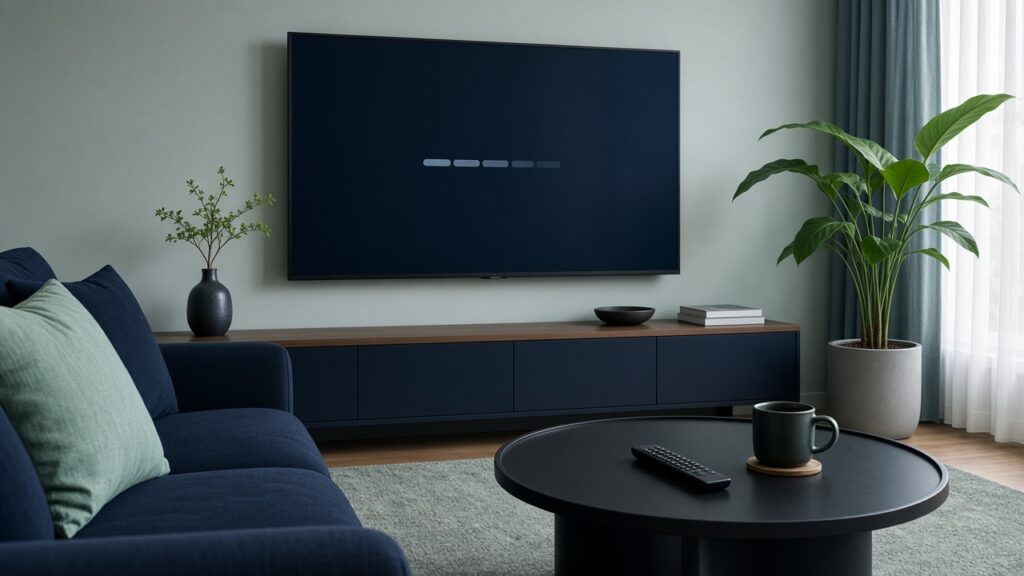
Buffering is the moment the picture freezes and the spinner takes over. It feels like the service failed. A lot of the time, the stream is waiting on the connection between your TV and the internet—not on a broken login.
This guide explains why IPTV buffering happens and what to try first, using the steps Kemo IPTV already publishes in its FAQ, plus the practical checks that usually separate a network problem from an account problem.
What buffering actually means
A live channel is a continuous download. If your Fire Stick, Smart TV, or phone cannot keep up, playback pauses until more data arrives. That pause is buffering.
One frozen channel and a whole lineup that stutters are different problems. One weak stream can be a source issue. Every channel freezing at once usually points at Wi-Fi, the device, or the internet provider.
Start with the restart Kemo recommends
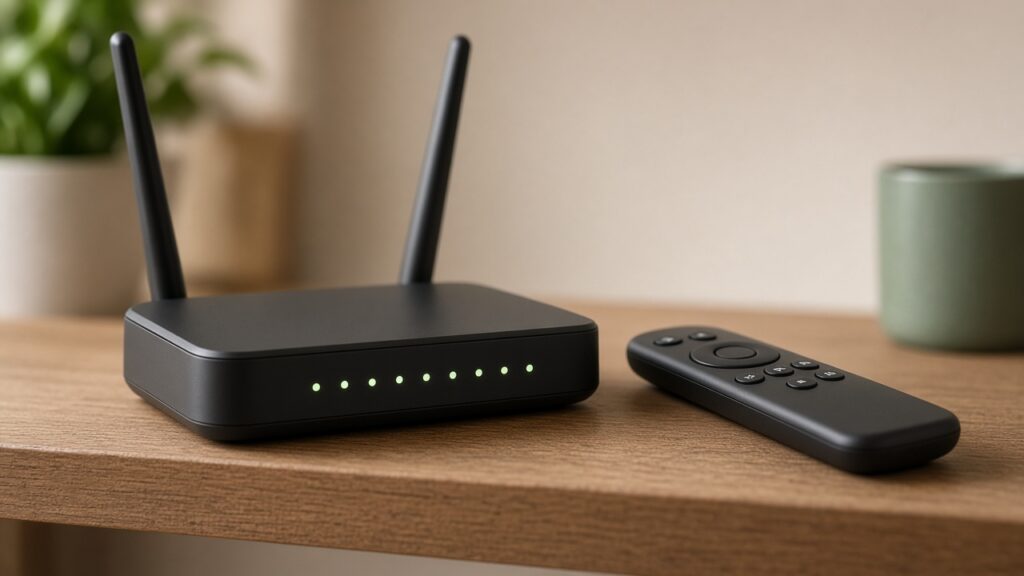
Kemo IPTV’s FAQ is direct about frequent freezing. The first step is to restart your router and the streaming device, then try the channel again. The FAQ says this fixes many cases.
Do it in this order:
- Close the IPTV app completely
- Restart the Fire Stick, Smart TV, or phone
- Restart the router and wait until Wi-Fi is back
- Open the app and test one news channel, then one sports channel
If playback is smooth after that, you do not need a new subscription. You needed a fresh connection.
Test speed on the device that is buffering
If the restart does not help, Kemo’s FAQ says to test internet speed from the streaming device itself, not from a different phone sitting on the same network. Open fast.com in the browser on that Fire Stick, TV, or box.
The FAQ says the result should be 20 Mbps or higher. If the TV is far below that while a phone in another room looks fine, the problem is the path to the TV: weak Wi-Fi, a crowded 2.4 GHz band, or a device that cannot hold a steady stream.
A speed test on your phone does not prove the stick behind the television has the same signal.
When live matches freeze more than other channels
Kemo’s FAQ also covers constant buffering or blocking, especially during live matches. In that case the site says the internet provider may be throttling or blocking the connection. It notes this shows up with many providers in the UK, and sometimes in other countries, and that a VPN is the fix in that situation.
That matches the separate FAQ answer on VPNs: use one only if your provider is blocking or throttling. If the connection is open and stable, a VPN is not required for everyday viewing.
If you turn a VPN on, pick a nearby server, then retest the same channel. A distant VPN server can add delay and make buffering worse.
Ready to try Kemo IPTV?
Choose a plan that fits your devices and connection needs.
Other causes worth checking at home
These are everyday streaming checks. They are not extra promises from the product page.
- Too many devices on one connection. Kemo’s FAQ says one subscription can be installed on more than one device, but a single-connection plan only plays on one screen at a time. A second stream on the same line can look like buffering or a failed login. If two rooms need to watch together, use a multi-connection plan from the shop.
- The app, not the account. If a playlist works in VLC on a computer and fails only on the TV, the FAQ points you toward the TV side. Try the Kemo IPTV App or another player listed in the setup guide.
- Distance from the router. A stick in a cabinet, or a TV two floors away, often gets a weaker signal than the phone you used for the speed test.
- Peak-time congestion. Even a fast plan can dip when everyone in the house is streaming. Test again with other downloads paused.
A short troubleshooting order
Work through this before you assume the service is down:
- Restart the router and the streaming device
- Run fast.com on that same device and look for 20 Mbps or higher
- Confirm you are not already playing the line on another screen
- Try a second channel and, if needed, a second player app
- If blocking shows up mainly on live sports, test with a nearby VPN as the FAQ describes
- If nothing changes, contact support with the device name, the app, and the fast.com result
What this is not
Buffering advice does not change activation time. Kemo’s FAQ says new accounts are activated between 30 minutes and 12 hours after the invoice is paid, and the subscription starts when the credentials arrive by email. A login that has not been sent yet is not a buffering problem.
Picture quality claims on the site (HD and higher options where a stream supports them) still depend on the connection you just tested. A 4K-looking setting on a device that cannot hold 20 Mbps will stutter.
Bottom line
Most IPTV buffering starts with the network in the room: restart first, measure speed on the TV or stick itself, and only add a VPN when the provider is throttling or blocking—especially around live matches. That is the same order Kemo IPTV publishes in its FAQ.
If the line is stable and you need another screen at the same time, compare connection options on the shop and follow the setup guide for the player you keep.